Viewing the Training Room
The Training Room provides a seamless way to join a course.
Users can:-
- Manage their own virtual desktops (trainers can control participants' desktops as well)
- Display the trainer's desktop in a grid or side-by-side view
- Record their desktop activity
- Detach the desktop view to another browser window or an external monitor if desired.
- Chat with others
-
Access training materials
Everything takes place right inside a browser window. By default, participants are taken directly to the Training Room as soon as they join a course, making it simple for new users to get started.
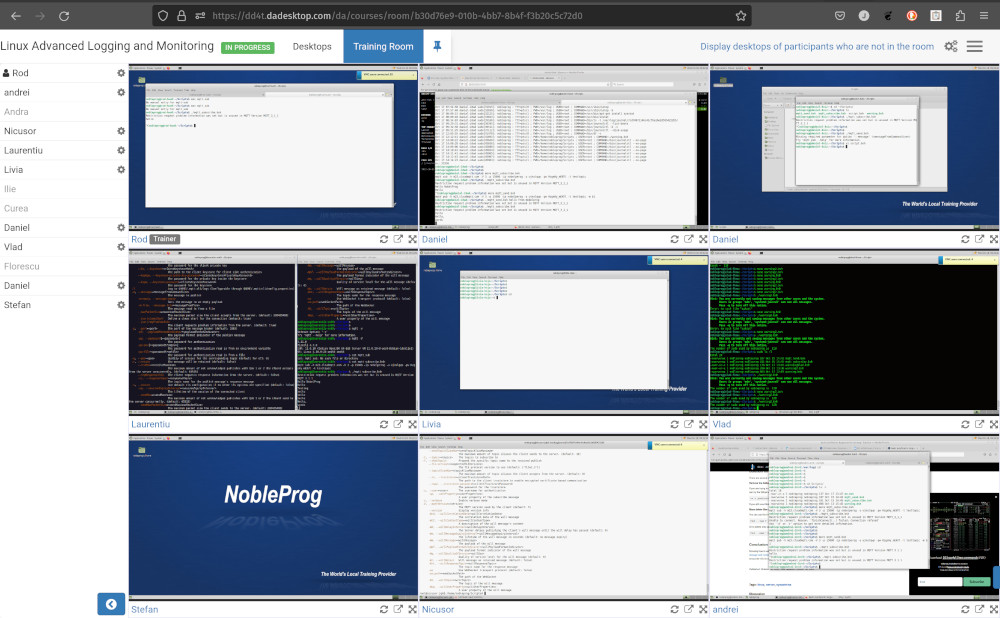
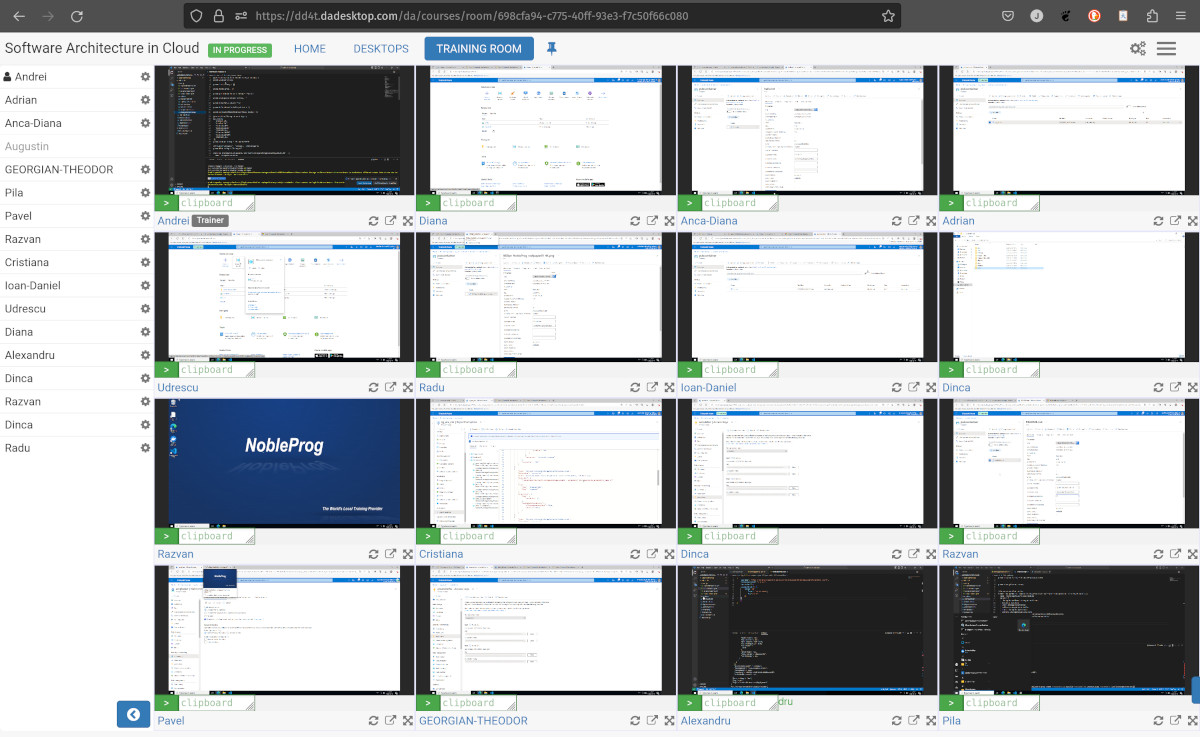
Trainers can view all participants' screens simultaneously and interact with individual machines—ideal for assisting someone who needs help or is struggling to keep pace. This unique capability of monitoring every student's machine at once is unmatched and significantly helps trainers recreate the feel of a traditional classroom.
Training Room from the Trainer's Perspective
Trainer's view of the Training Room with 16 participants
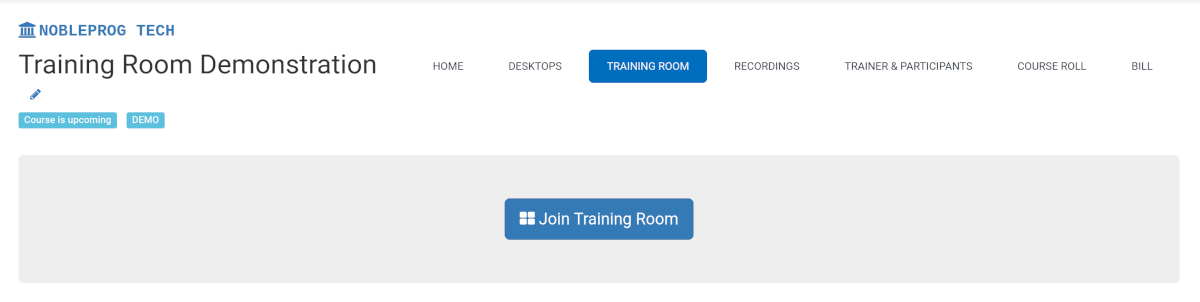
How to Join a Training Room
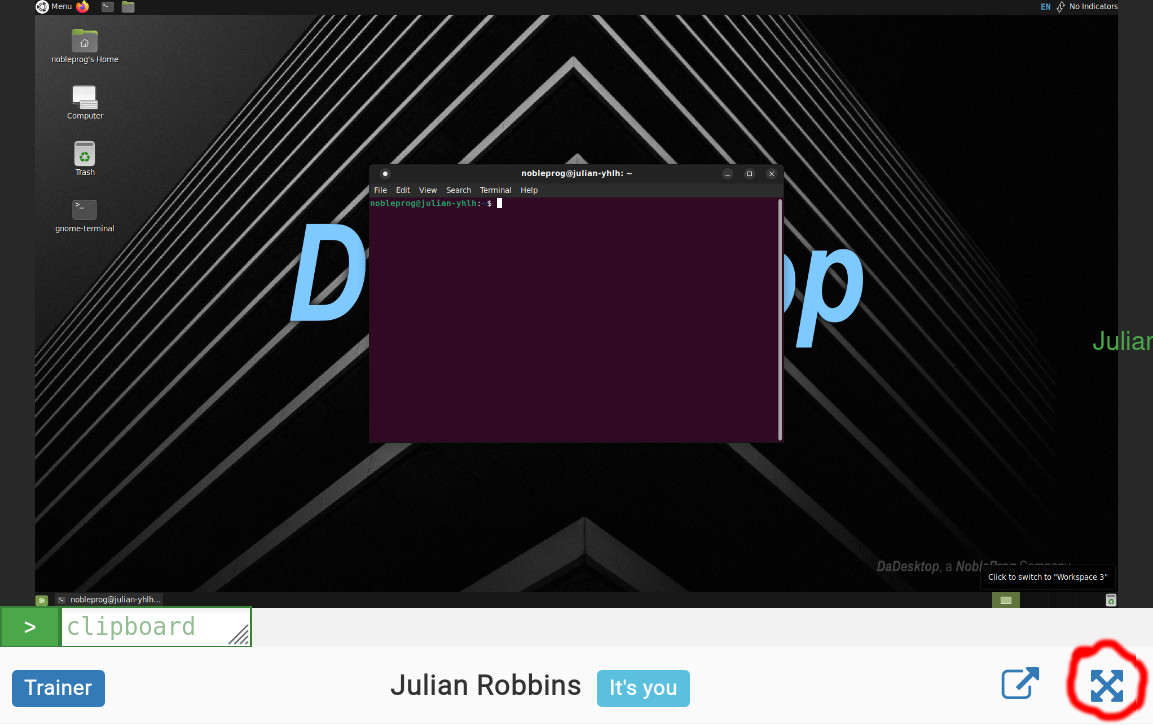
Maximising the Window
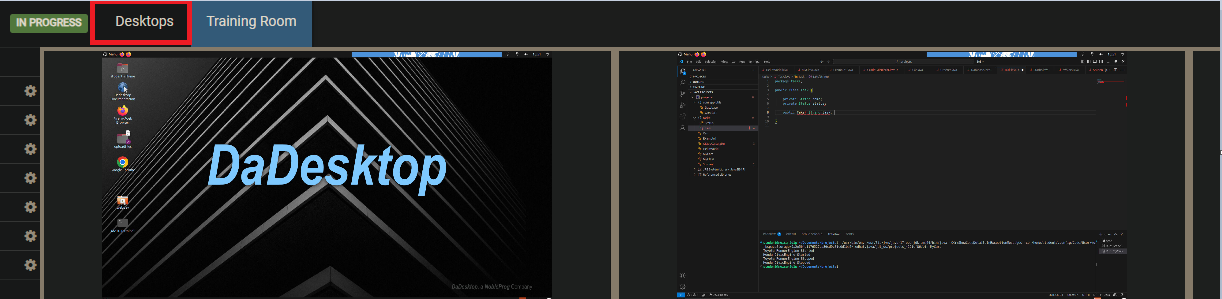
Exiting the Training Room View
To leave the Training Room view—though not the most obvious method—simply click the `Desktop` tab again, and you'll return to the Training page.