Schedule/Un-schedule Deletion of Standalone Machine
Why should you care about the deletion schedule?
If you're using a Standalone machine to revisit a past lab from a course you've taken, or you're a trainer getting a course ready, there's absolutely no reason to be concerned about this.
However, to use system resources more efficiently, any standalone machine that has been idle for more than a month will automatically get a deletion scheduled. We'll notify you about it seven days in advance.
You can also undo the scheduled deletion.
How you can schedule deleting a standalone machine yourself.
- When creating a standalone desktop, you can pick a delete date
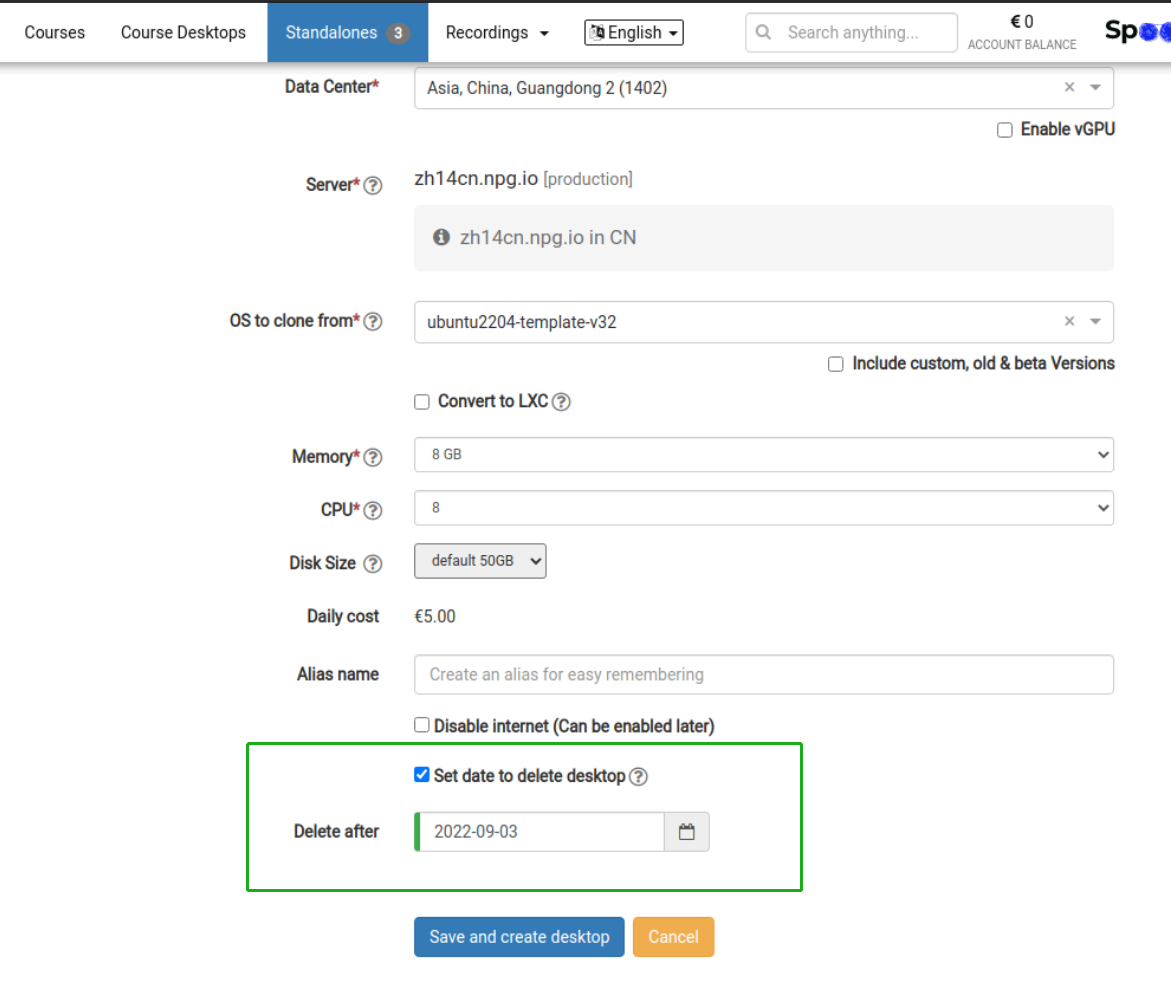
-
Choose a deletion date from the Options menu
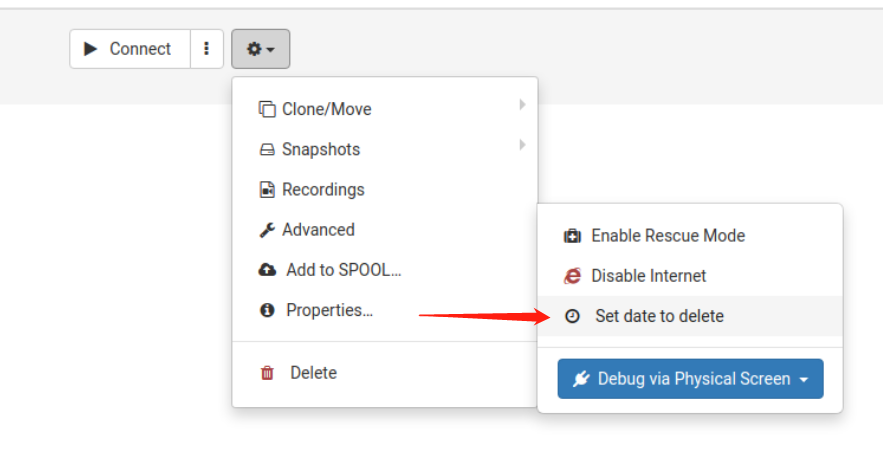
How you can clear the scheduled deletion date
1. In the Options menu, click "Scheduled to delete on"
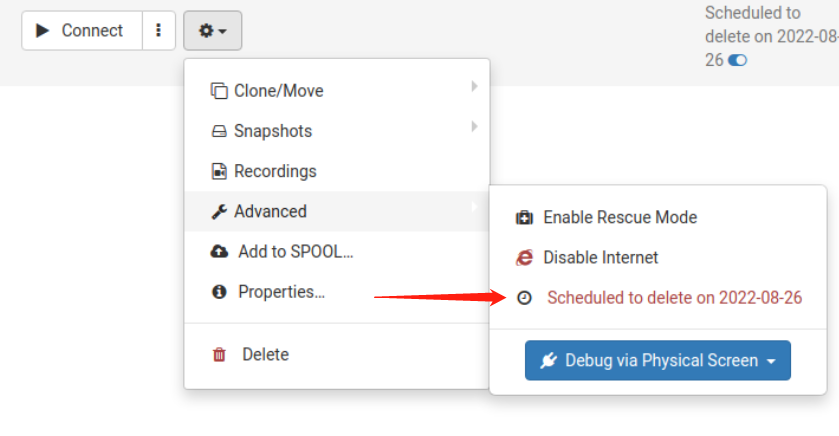
2. Hover over the blue toggle icon and click it to instantly remove the deletion date
