Recording Trainer Sessions
DaDesktop offers several methods for creating desktop and course recordings: trouble-shooting recordings, training room recordings, and trainer recordings.
Trainer recordings capture the Trainer's DaDesktop session. Here's how a trainer can initiate a recording of their own machine.
- Click on the three vertical dots to bring up a dropdown menu, then select 'Connect (with session recording)'
-
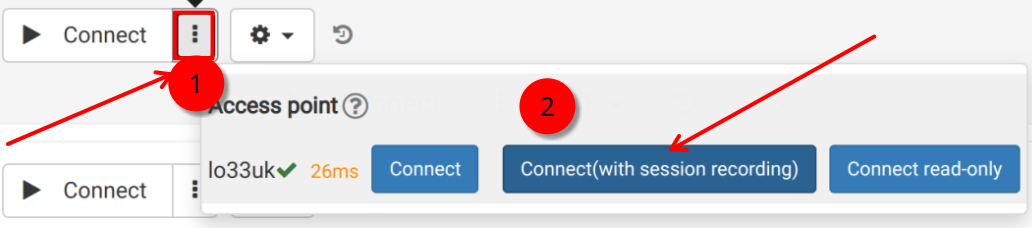
This creates an audio/video recording of the Trainer machine, but you won't be able to view it until after you've closed the virtual classroom and the recording has been finalized. Note: If you're logged in as a SuperAdmin, an extra menu option lets you watch the recordings live while they're being captured.
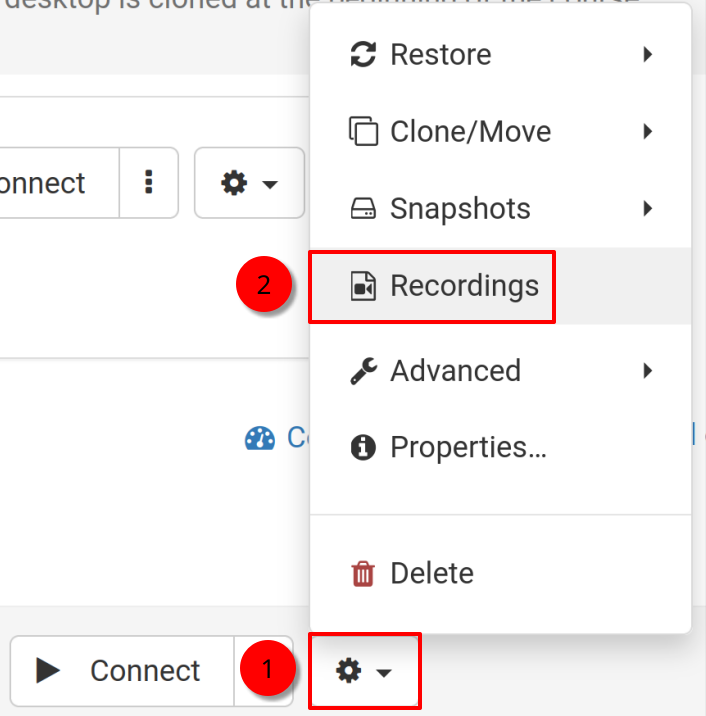
- To access and edit your recordings, click the gear icon ('cog') and then head to the Recordings menu.
Recordings
Trainer recordings of your machine can be reviewed in two ways.
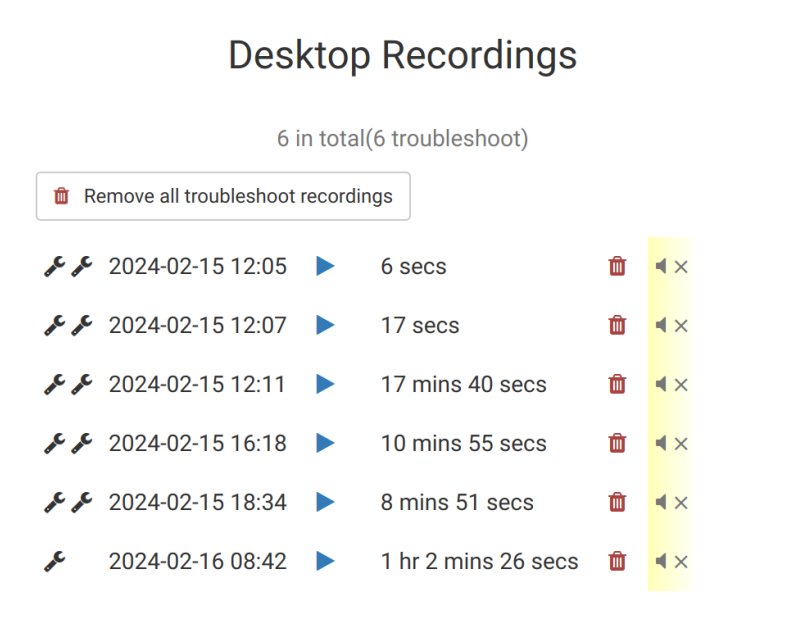
- You can access the recordings from the Recordings menu mentioned earlier. From there, you can play or delete them as needed. The icon showing two spanners represents 'Troubleshooting Recordings'—these are captured automatically for diagnostic purposes, not for presentation, and can be used whenever troubleshooting is required.
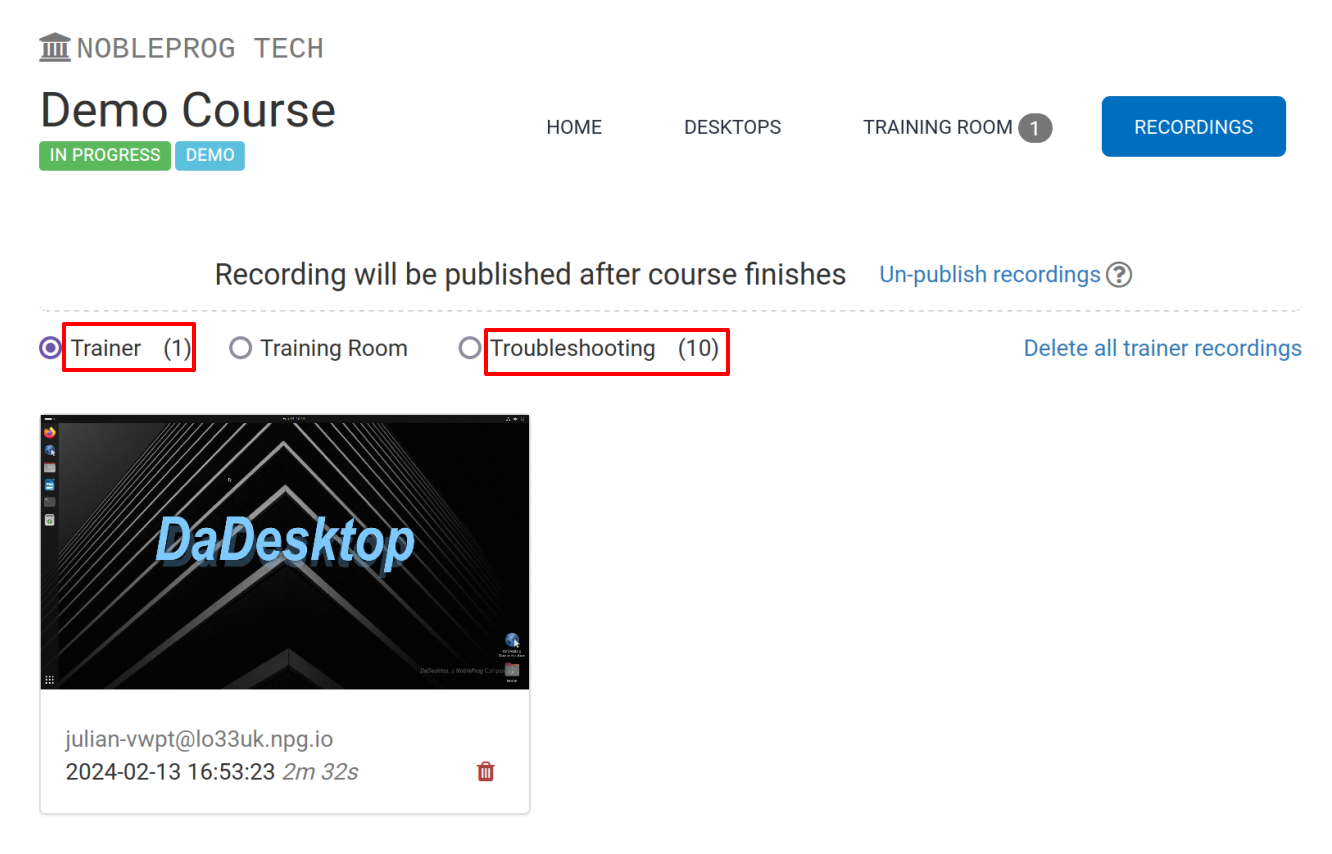
2. Via the 'Recordings' tab within a course, you can view trainer recordings, training room recordings, and troubleshooting recordings.