Adjusting Disk, CPU, and Memory Resources
If you're a trainer, you can modify the resources originally set up for the Fresh-Start Desktop. This comes in handy when you discover the course needs more CPU power, extra memory, or additional storage to run extra programs or software smoothly.
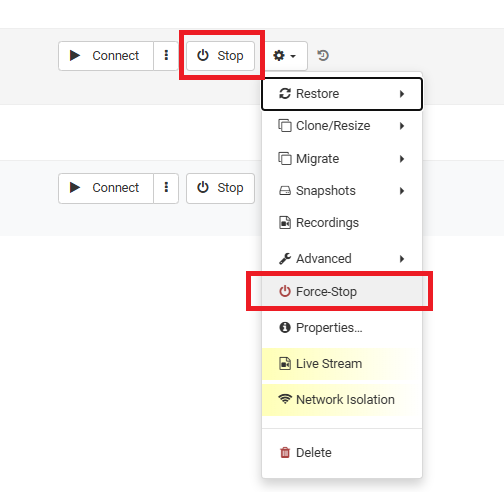
Before you update these settings, be sure the Fresh-Start desktop isn't running. Click the gear icon and choose either "Stop" or "Force-Stop" to shut it down.
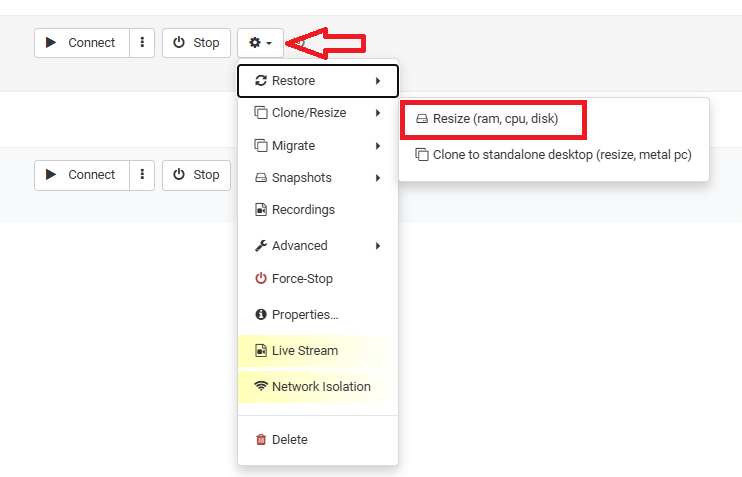
Once it's stopped, you can resize the allocated resources. Simply click the gear icon, then go to advanced > Resize (ram, cpu, disk).
After selecting that option, a Resize form pops up, letting you reassign the CPU, RAM, or storage you need for your desktop. The form clearly shows the maximum limit for each type.
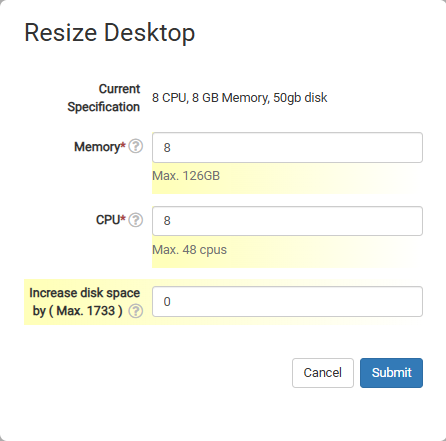
Bear in mind these adjustments will impact the desktop's pricing, but it's wise to supply what's necessary so the course runs without hiccups.