Create from a Standalone Desktop
-
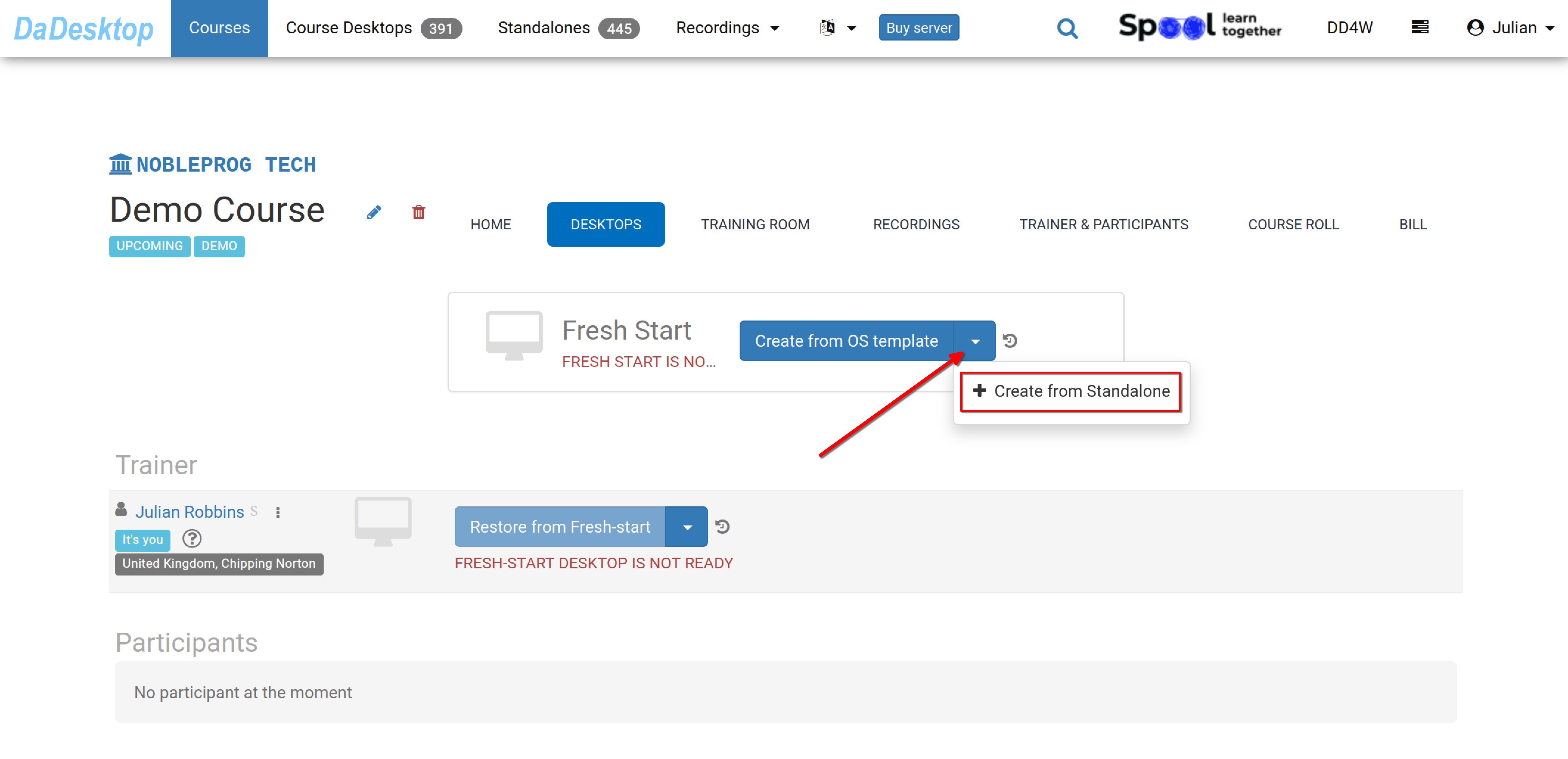
Navigate to your course (a Demo course is shown below). Select the Desktops tab, click the down arrow, and choose "Create from Standalone" to build your Fresh Start.
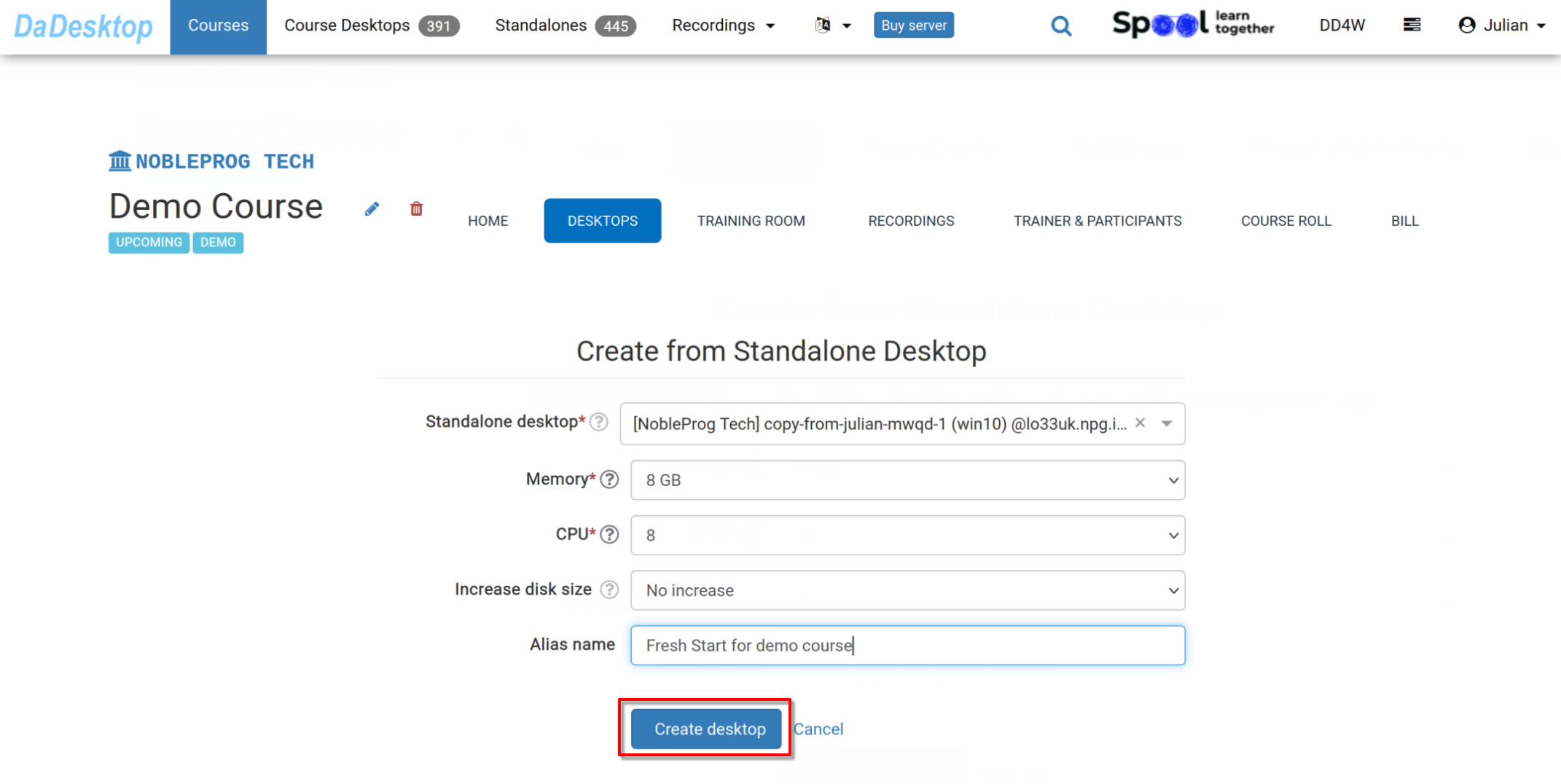
- Pick the standalone desktop you previously used for the course environment (software, course materials, quizzes, etc.).
-
If needed, adjust the memory, CPU, or disk size at this stage, then click "Create desktop".
-
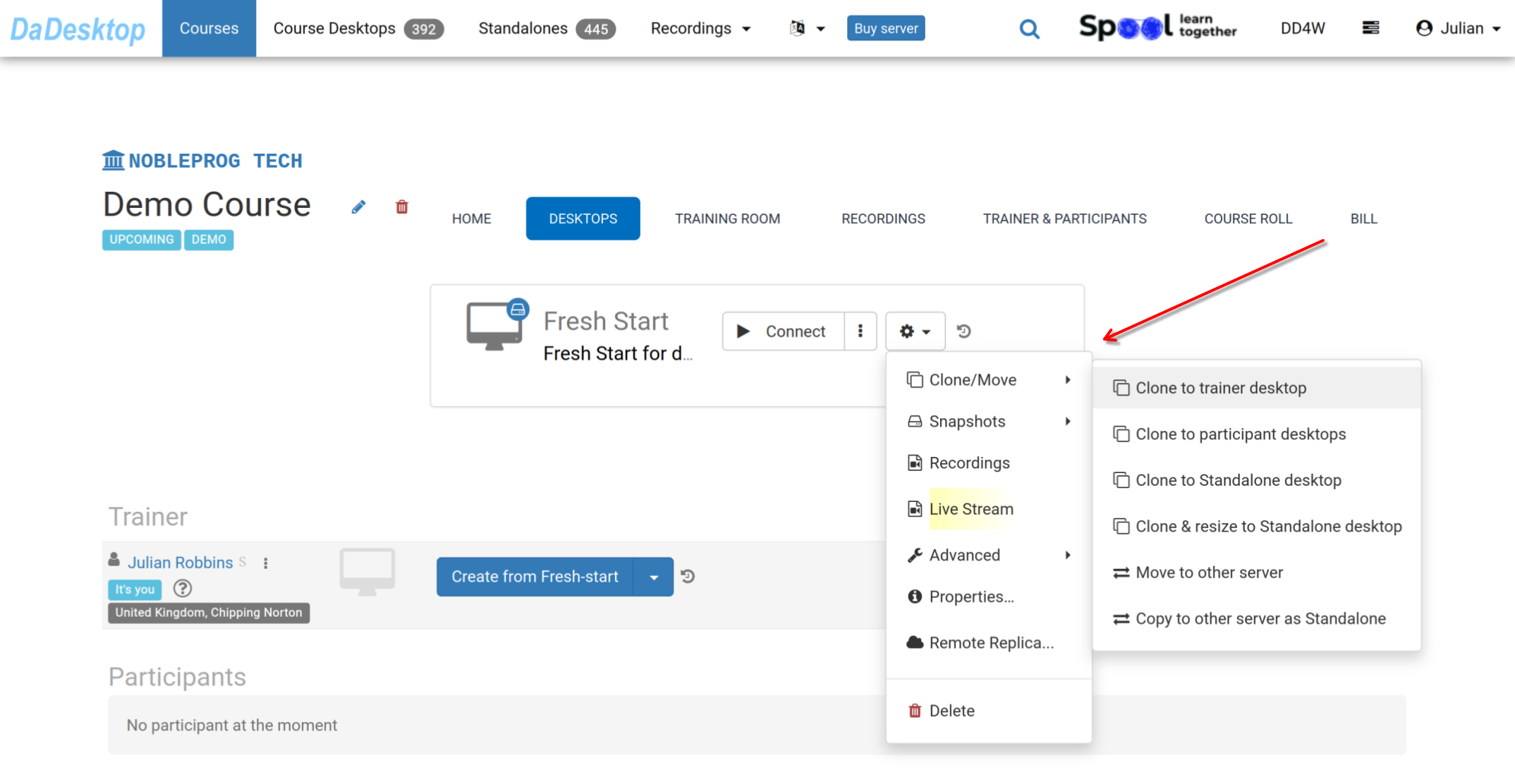
Your Fresh Start is now ready. Trainers and participants can clone desktops from it.
This Fresh Start desktop lets you clone to all participants and the trainer in a single step. Anyone in the course can restore from it whenever necessary.
From the 'Cog' menu, you'll find many more options: clone the Fresh Start to a Trainer, Participant, or Standalone machine; clone and resize to a Standalone; move the Fresh Start to another server; take snapshots; review recordings; or configure a remote replica.Please check the documentation for details on each of these features.