Creating a Desktop from an OS Template
To get started with an OS template-based desktop creation:
- Navigate to the course’s Desktops menu
- Click "Create From OS Template"
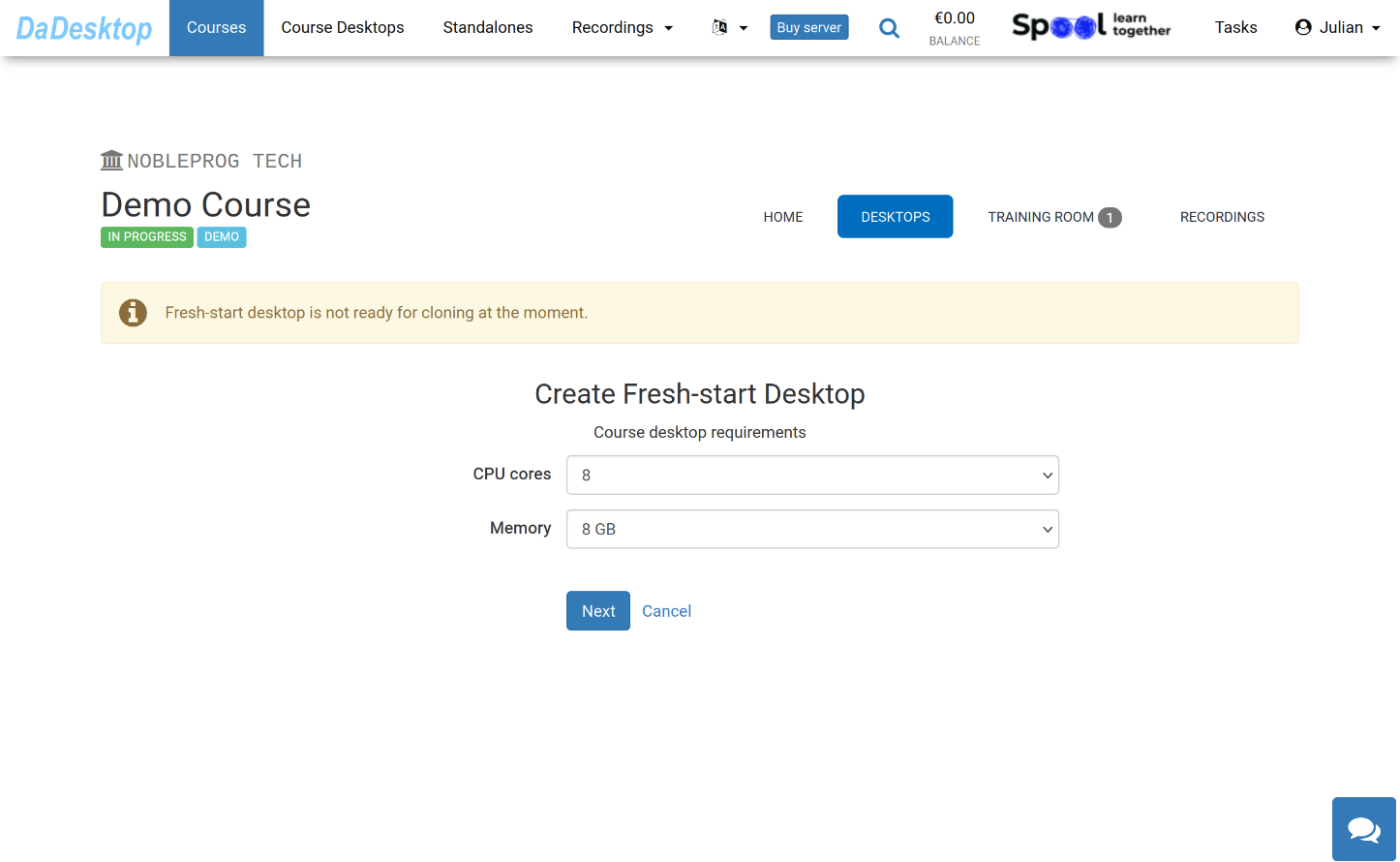
The screen below shows the various settings you’ll see when creating from an OS template
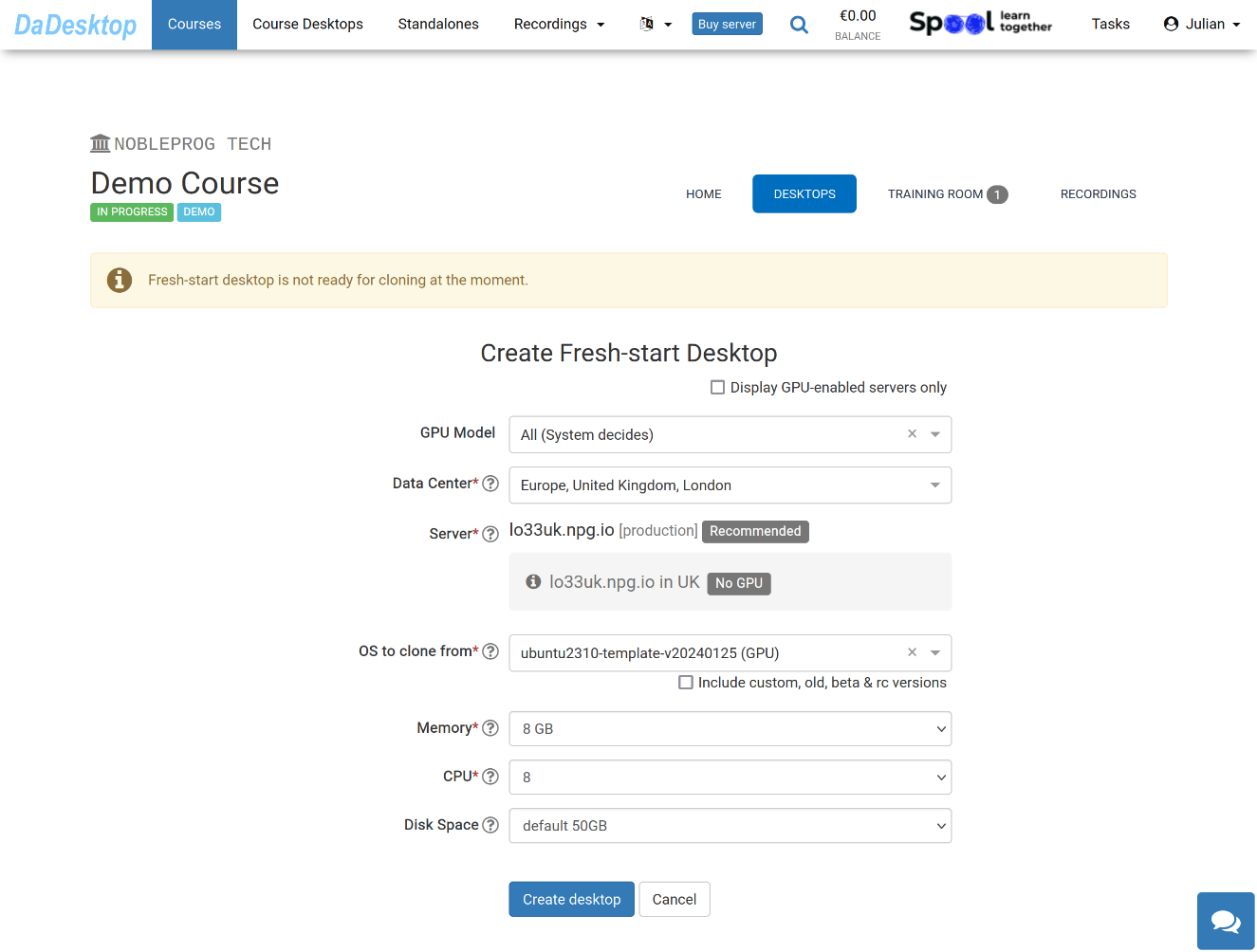
Here’s what each field means:
-
GPU Model
Pick the GPU model and type you need. Check ‘Display GPU enabled servers’ to see only servers that have GPUs. -
Datacentre / Server
Choose the datacentre region and server closest to where you are Brazil. -
OS to clone from
You’ll find a range of operating system templates, like Windows and various Linux distributions (Ubuntu, Debian, AlmaLinux, and more). -
Include custom, old, beta & rc Versions
DaDesktop refreshes its templates often, but if the newest template gives you trouble, this lets you fall back to a previous version. -
CPU
Set the number of CPU cores you need. The default is 8 cores, which works well for typical Linux and Windows tasks. -
Memory
Specify the memory limit in GB. Keep in mind that the server’s resources set the ceiling—each server has its own memory cap. To raise this limit, reach out via our Support Chat. -
Disk Space
Set the amount of disk space to allocate; the default is 50GB.